Your account
Change your name, email address and password, delete your account, and set your theme, language and keyboard shortcuts.
Your account is personal: it is the same in every organization you belong to, and only you can change it. Open the account menu in the header to reach Profile, Security and Preferences. Security holds your passkeys and connected accounts; see Sign-in and security.
Before you start
- No organization role is needed: every signed-in person can change their own account.
Change your name
- Open Profile.
- Change your First name or Last name.
- Select Save.
Your name is what other members see in your organizations.
Change your email address
- On Profile, under Email, select Change email.
- Enter the New email and select Send verification.
- Open the link Costfluent sends to the new address. It expires after 24 hours.
Until you follow the link, your old address stays in use and Profile shows the new one as pending. Following it signs you out on every device; sign in again with the new address. Costfluent also tells your old address that the change was made.
An address another account already uses is refused with "Another account already uses this email address." If your organization manages your email address through single sign-on, Costfluent refuses the change and says so; ask your organization's administrator to change it in your identity provider.
Change your password
On Profile, under Password, select Change password. Costfluent emails you a link to set a new one.
Delete your account
- On Profile, under Delete account, select Delete account.
- Type your email address to confirm and select Delete my account.
You are signed out, removed from every organization, and cannot sign in again. Your name and email address are anonymised in our records. This cannot be undone.
If you are the only Owner of an organization, Costfluent refuses and asks you to transfer its ownership or delete it first. To transfer it, make another member an Owner with Change role; see Users, teams and roles. Otherwise, delete the organization.
Set your preferences
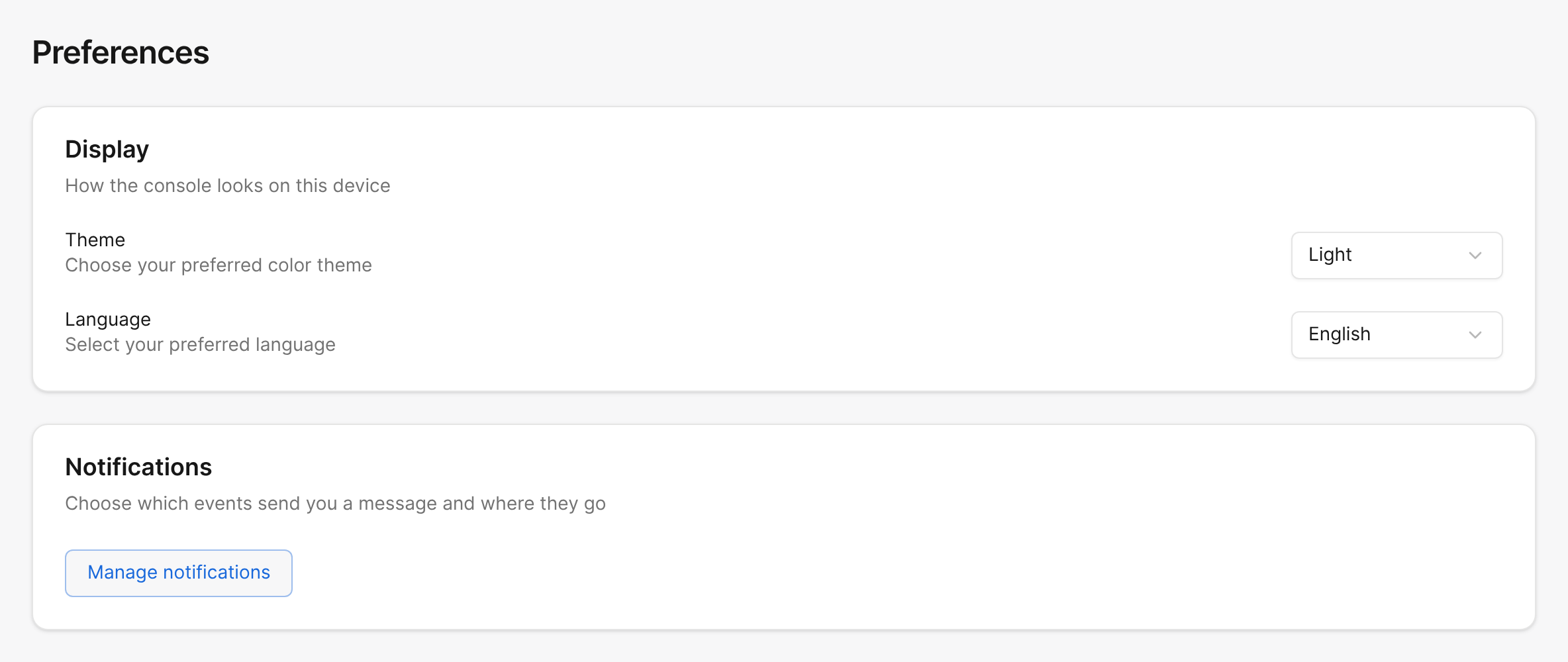
Open Preferences. Under Display:
- Theme: Light, Dark or System, which follows your device. It is saved to your account, so it follows you when you sign in elsewhere.
- Language: English or Deutsch. It is kept in this browser only, so set it again on another device.
Both apply at once, and the account menu offers Theme and Language too. Under Notifications, Manage notifications opens the notification channels.
Keyboard shortcuts
Select Keyboard shortcuts in the account menu, or press Ctrl and ? (⌘ and ? on a Mac), to see the list, grouped under Navigation and Actions. These work everywhere in the product:
| Shortcut | What it does |
|---|---|
| Ctrl+K (⌘K) | Opens the command palette |
| Ctrl+[ (⌘[) | Shows or hides the sidebar |
| Ctrl+? (⌘?) | Shows the keyboard shortcuts |
Under Actions, Esc closes a dialog or cancels, and Enter confirms it.