Invoice reconciliation
Upload or enter a cloud provider's invoice for a month and read how it matches the cost a workspace ingested, invoice by invoice and per billing currency, with the residual against the FOCUS tolerance.
Planned: invoice reconciliation
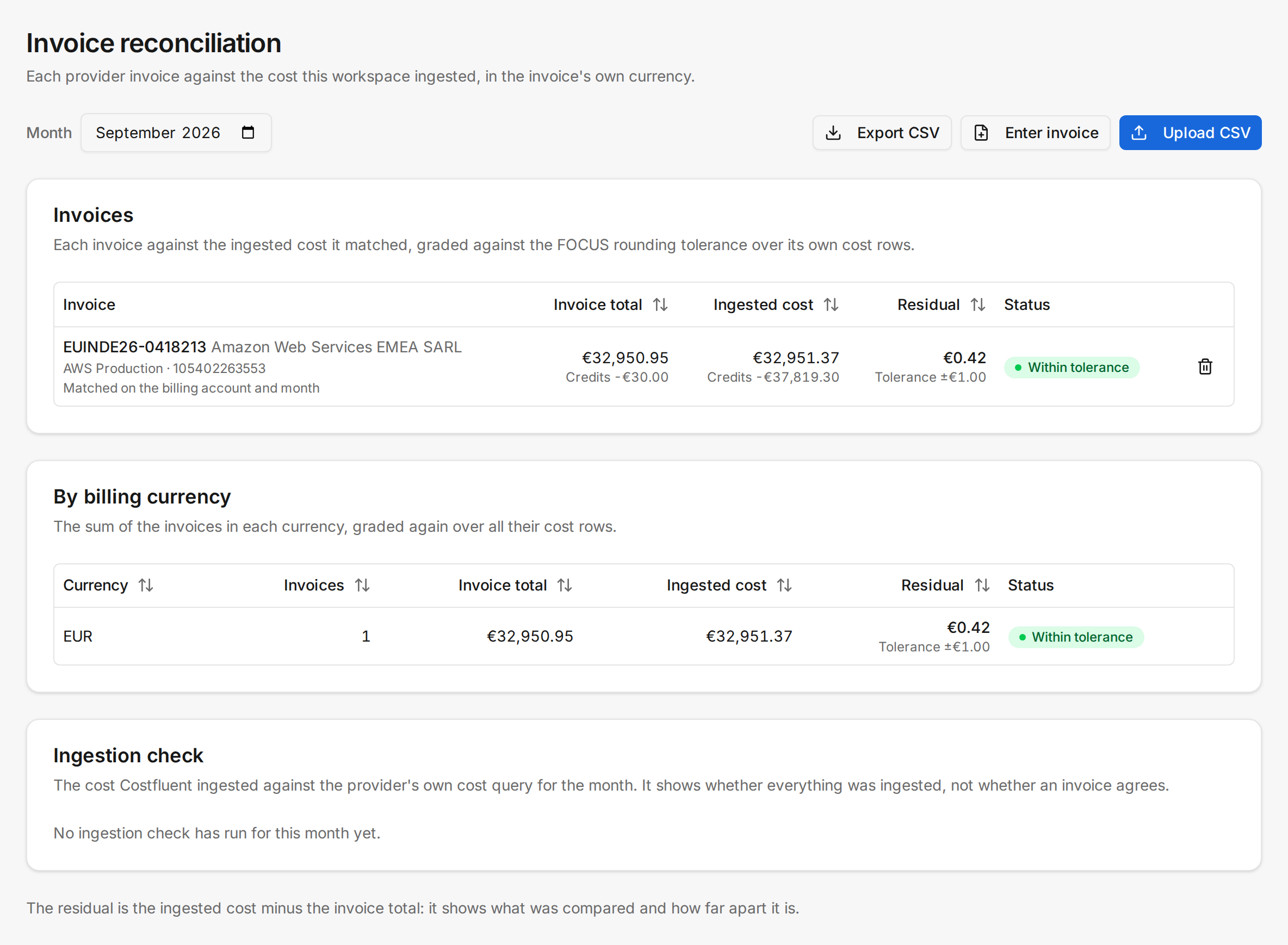
Invoice reconciliation compares a cloud provider's invoice with the cost Costfluent ingested for the same connection and month. Each invoice gets its own row: the invoice total, the ingested cost it matched, the Residual between them and whether that residual is inside the FOCUS rounding tolerance. The comparison runs in the invoice's billing currency and is never converted. Beside it, the Ingestion check shows the monthly comparison of ingested cost with the provider's own cost query, which answers a different question.
The page states what was compared and how far apart it is, and nothing more: it changes nothing outside Costfluent.
Before you start
Included in the Custom plan. Compare plans
- Any team role that can view the workspace's costs can read the page; exporting it needs the right to export costs.
- Uploading, entering and deleting invoices needs Reconcile invoices, which the Editor team role holds. A team with Can view access to the workspace cannot.
- Invoices are reconciled only for connections the workspace reads in full. An invoice covers the whole billing account, so a connection the workspace reads only some accounts of is listed as not reconciled here, and an upload for it is refused.
Upload an invoice
- Open Invoice reconciliation and set Month to the month the invoice bills.
- Select Upload CSV.
- Under Connection, choose the connection the invoice bills, and under CSV file choose the file.
- Select Upload.
The file is a FOCUS 1.4 Invoice Detail CSV: a header naming the dataset's columns, in any order,
and one row per invoice line. It needs BilledCost, BillingAccountId, BillingCurrency,
BillingPeriodStart, BillingPeriodEnd, ChargeCategory, InvoiceDetailId, InvoiceId,
InvoiceIssueDate, InvoiceIssuerName and InvoiceIssueStatus, and reads the dataset's other
columns when they are there. One file may hold several invoices; the rows of one invoice must agree
on its billing account, currency, period, issue date, status and payment columns.
Enter an invoice by its header
For an invoice that comes only as a PDF:
- Select Enter invoice.
- Choose the Connection, and fill in Issuer, Invoice ID, Billing account, Billing currency and Issue date as the invoice states them.
- Fill in Charges, Credits and Tax. Enter credits as the invoice prints them, a negative amount.
- When the provider charged you in another currency, fill in Payment currency and Total in payment currency.
- Select Save invoice.
The invoice is stored for the month on screen, as one line for each amount that is not zero.
Read the month
Invoices has one row per invoice:
- Invoice names its ID and issuer, its connection and billing account, and how it was matched: on the invoice ID, when the ingested cost rows carry it, as AWS and Azure rows do; or on the billing account and month, when they do not, as Google Cloud rows do not. Invoices of one billing account and month that no cost row names are matched together in one row.
- Invoice total and Ingested cost are in the invoice's billing currency. Under each stand
that side's credits: the invoice's credit lines and the lines that correct another invoice, and
the ingested cost rows of charge category
Credit. A credit one side carries and the other does not yet reads as the timing difference it is. - Residual is the ingested cost minus the invoice total, with the tolerance under it.
- Status is Matched when the residual is zero, Within tolerance when it is inside the tolerance, and Residual beyond tolerance otherwise.
- Exchange rate shows, when an invoice was paid in another currency, the provider's own rate (the total in the payment currency over the invoice total) beside the ECB's rate on the month's last publication. Neither is applied.
By billing currency sums the invoices of each currency and grades the sum again over all their cost rows, so it can be beyond the tolerance while each invoice is inside its own.
Select Export CSV to download the month's invoice and currency rows as the page shows them.
Delete an invoice
Select the delete button on the invoice's row and confirm. The invoice is removed from its connection, so every workspace that reads the connection in full loses it. Uploading or entering an invoice with the same issuer and invoice ID replaces it instead.
How it behaves
- The tolerance is the FOCUS rounding variance tolerance: the larger of 100 of the currency's smallest unit and half the square root of the number of cost rows compared, in that unit.
- One refused row refuses the whole file, before anything is stored. A file holds at most 20,000 invoice lines and 10 MB. A voided invoice, a row without an issue date and a billing period that is not one calendar month are refused.
- An invoice already imported under a connection this workspace does not read in full is refused, because importing it here would move it away from the workspaces that read that connection.
- Each upload, entry, deletion and export is recorded in the audit log with the member who did it.