Annotations
Pin a dated note to one or more saved cost reports, see it as a marker on the chart, and see the days a budget or cost alert on the report fired.
An annotation is a dated mark on a saved report's chart: a note someone wrote, such as "Moved the batch jobs to Graviton", or the day a budget threshold or a cost alert on the report fired. It explains a change in cost to whoever opens the report next. The Annotations panel under the chart lists them, and the chart draws each one as a marker.
Before you start
- A saved report; a new report has no Annotations panel until it is saved. See Save and manage reports.
- Every team role can read annotations. Adding, editing, resolving and deleting them needs the Editor team role in a workspace your team can edit, the same access that changes the report. See Access model.
Add a note
- Open the report. On a bar, line or area chart, point at the day, week or month the note is about and select "Add note on" followed by its date. Or select New in the Annotations panel.
- In New annotation, check the Date and enter the Note.
- Under Reports, keep this report or choose up to ten reports of the workspace the note belongs on.
- Select Add annotation.
The note appears in the panel with its date, "Note" and "Added by" its author, and as a marker on the chart of every report it is on.
Read the markers
Each marker is a dashed line through the bar or point holding its date, with a badge counting the annotations there. A weekly chart draws a week's annotations on its week, which starts on Monday, and a monthly or quarterly chart on its month or quarter. A date in a forecast period draws on the forecast.
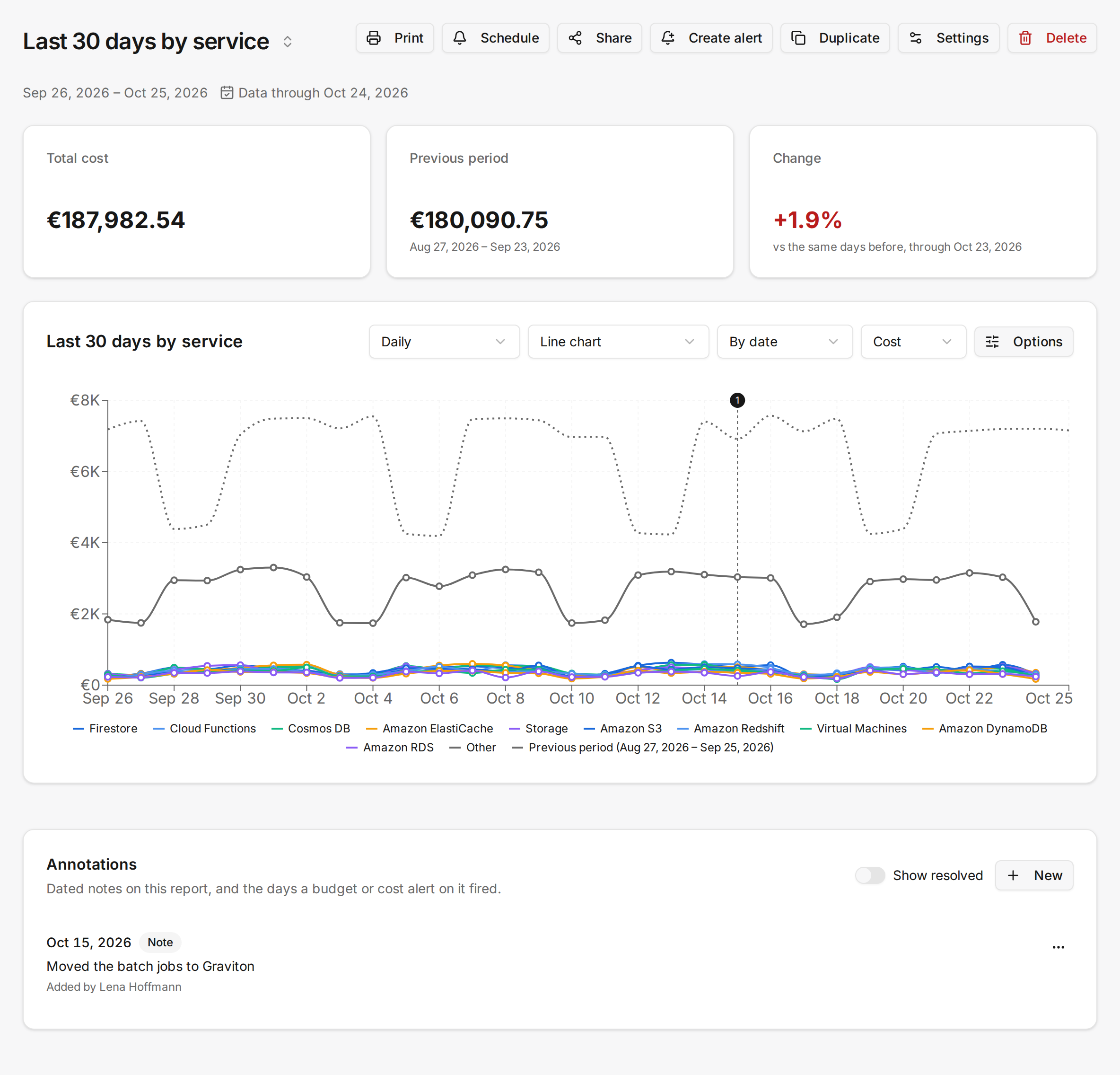
Select a marker to show only its annotations in the panel, which then names the day or the days of its period. Select Show all to list the report's whole range again.
Markers from cost alerts
A spend threshold or unusual change cost alert that fires annotates every saved report of its workspace whose filter is the same as the alert's, whatever order its conditions are written in, so an alert created from a report annotates that report while neither filter changes. The annotation reads "Cost alert", names the alert and links to the Alerts page. It is dated on the last day the alert measured, the day before yesterday in UTC, because providers deliver cost a day or two late.
Markers from budgets
Planned: budget alert notifications
A budget that measures a saved report annotates that report each time a threshold fires; when several are crossed at once, one annotation names the highest. The annotation reads "Budget alert", names the budget and the threshold it reached, and links to the budget. It is dated on the last day of cost the budget counted: today in the workspace's time zone, or the last day the report's connections have data for when that is earlier.
Edit, resolve or delete
- In the Annotations panel, open the actions menu of the annotation.
- Select Edit to change a note's date, text or reports, Resolve to hide it, or Delete to remove it from every report it is on.
A resolved annotation leaves the panel and the chart. Turn on Show resolved to see resolved ones again, marked "Resolved", and select Reopen in the actions menu to bring one back.
How it behaves
- A note holds up to 1,000 characters and stands on one to ten reports. It is shown as written: text is never read as formatting or links.
- An annotation from a budget or cost alert states what happened, so it can be resolved or deleted but not edited.
- A budget on the whole workspace or on a segment measures no report and adds no annotation. Neither does a low tag coverage alert, nor a cost alert that names connections, because no report charts what it measures.
- The panel and the chart show the annotations dated within the report's range. Changing the range or the granularity moves the markers with it.
- Pie charts, tables and charts with groups along the horizontal axis draw no markers; the panel still lists the annotations.
- A deleted report drops out of the annotations on it. An annotation whose reports are all deleted is no longer listed.
- Annotations stay inside the workspace: a share link, a dashboard widget and the printed report show none.
- Adding, editing, resolving, reopening and deleting an annotation is recorded in the audit log. The Public API reads and writes annotations under
/v1/annotations; see the API reference.