Import Hetzner invoices
Import the detailed usage statement of every Hetzner invoice by pasted link or CSV upload, or by invoice email where your organization has an invoice address, and see Hetzner's net cost per project and resource.
Hetzner offers no cost export, but every Hetzner invoice links a detailed usage statement: each line of the invoice, per project, product and resource. A Hetzner import brings those statements into Costfluent. You create it once with your Hetzner customer number. Where your organization has an invoice address, you add it at Hetzner, and from then on each invoice Hetzner emails imports its statement by itself. Past months, and every month without the address, import from their links or files.
How Costfluent imports Hetzner
Costfluent stores no Hetzner credential. A statement opens at its link, such as
https://usage.hetzner.com/00000000-0000-0000-0000-000000000000, together with the customer number
of the account it belongs to. A Hetzner import holds one customer number, and Costfluent opens only
statements under it.
A statement reaches the import in one of three ways:
- By invoice email. Hetzner emails each invoice to the addresses listed in your Hetzner account. With your organization's invoice address among them, Costfluent reads the link in the invoice PDF, fetches the statement and imports it.
- By pasted link. You paste the link behind an invoice's "Click here to see detailed usage", and Costfluent fetches that statement at once.
- By upload. You upload the invoice PDF, whose link Costfluent reads as from an email, or the statement's CSV file, which "Download CSV" on its usage page saves.
The same statement arriving again, by any of the three, adds nothing.
Net amounts
Each statement line becomes cost at its net amount in euros, kept at the four decimals Hetzner writes. VAT is never counted as cost. A statement adds its own lines and changes nothing else, so two invoices of the same month both count. A line with a negative amount is a credit.
Hetzner counted twice
Do not also import Hetzner's e-invoices into an e-invoice provider. Since November 2026 Hetzner's invoice PDF carries a Factur-X e-invoice, and importing it as well counts Hetzner twice. Costfluent takes Hetzner's invoices one way per organization. While a Hetzner import exists, it refuses a Hetzner e-invoice for its customer number. While an e-invoice provider already holds Hetzner's invoices, it refuses every Hetzner statement, by email, PDF, link or upload, naming that provider: delete Hetzner's invoices from it, or delete it, to import statements instead. A Hetzner invoice email is then imported as an e-invoice, as before.
Prerequisites
- The Manage integrations capability, which owners and integration owners hold, to create the import, paste links and upload or delete statements. Anyone with View integrations can see the uploads.
- Your Hetzner customer number, which Hetzner prints as "Customer ID" at the top of every invoice: a
Kand ten digits, such asK0000000000. - To receive invoices by email: your organization's invoice address, and access to the Hetzner
account's email settings at
accounts.hetzner.com.
Connect
Create the import
- Open Settings, then Integrations, and under Upload files select Hetzner.
- Select New Hetzner import, on the Manage or the Connect tab. The Connect Hetzner dialog opens.
- Under Customer number, enter the "Customer ID" from your invoices. Under How will Hetzner invoices reach Costfluent?, choose Forward invoice emails, Upload invoice PDFs or Paste usage links, then select Connect.
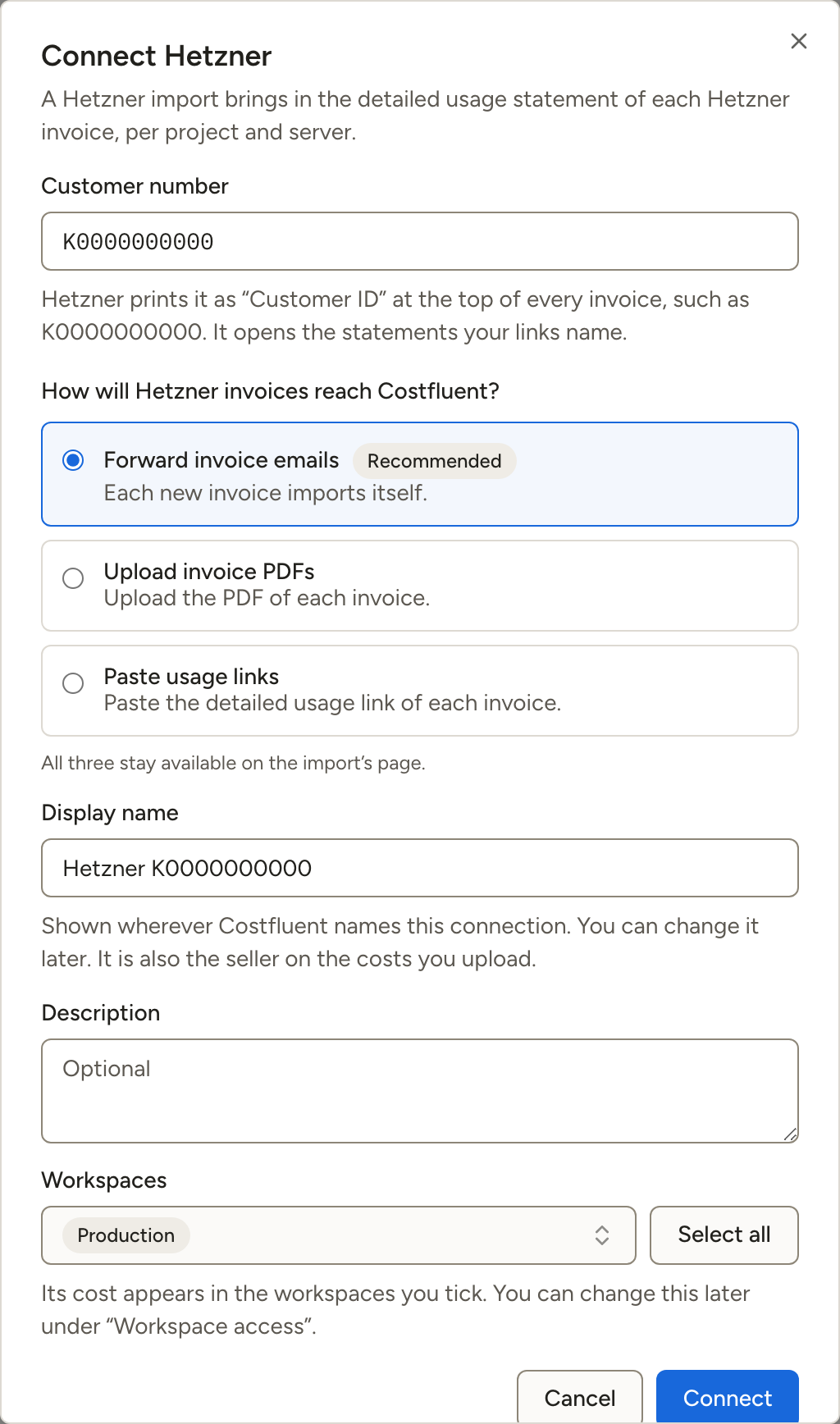
The Display name starts as Hetzner followed by the customer number, so a second account reads
apart from the first; change it as you like. Forward invoice emails is offered, and recommended,
only where your organization can receive invoices by email. The way you choose only decides which
tab of Add invoices the import's page opens on: every import takes all three. Create one import
for each Hetzner account. The customer number cannot be changed once the import has an upload.
Add invoices
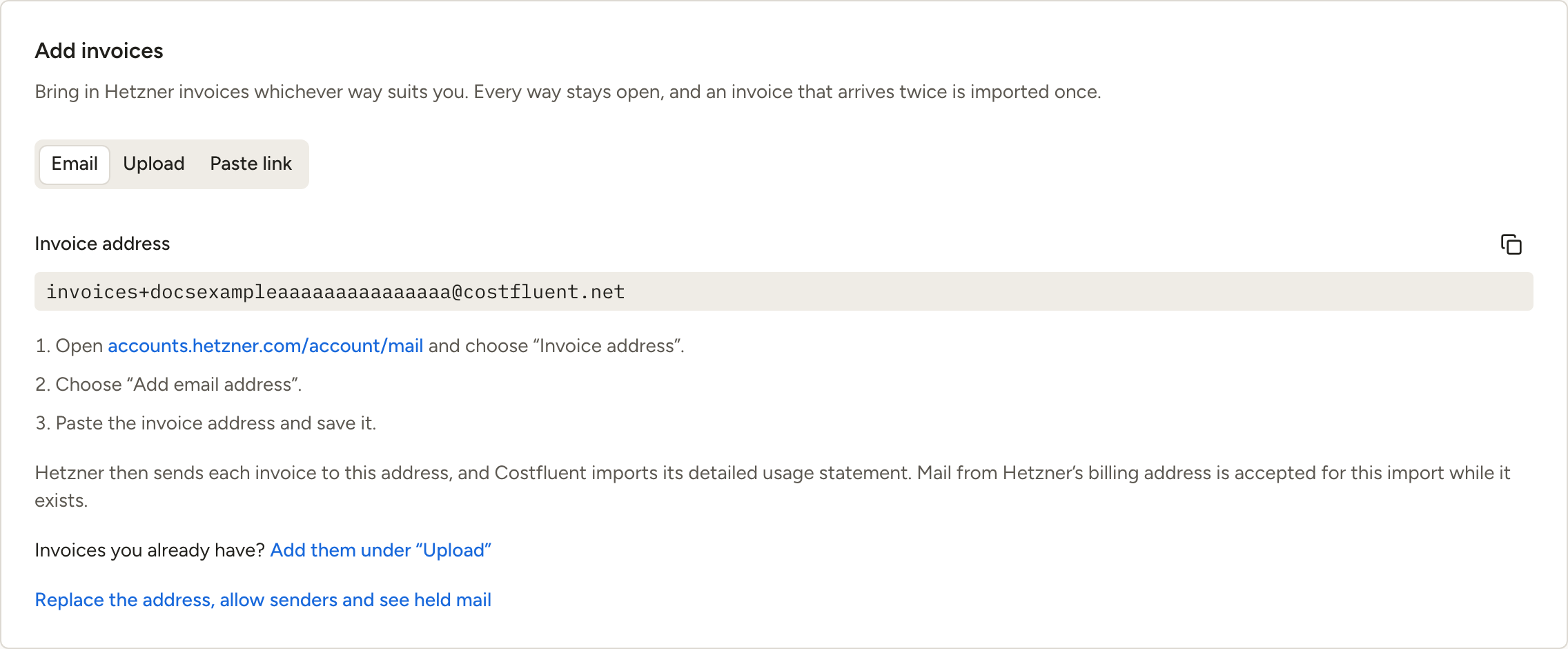
The import's page opens on Add invoices, followed by Workspace access, where you choose the workspaces its cost appears in, and Uploads, which lists each statement the import took. Add invoices holds every way a statement comes in, as three tabs: Email, Upload and Paste link. The import takes all three at once; the tab only shows the one you are using. Only members who manage integrations see the card.
Receive invoices by email
The Email tab shows your organization's invoice address. Where it is not offered, forwarding invoices by mail is not available, and you import each month by its link or file instead, as under Import past months.
- On the import's page, under Add invoices, open Email. If your organization has no invoice address yet, select Create invoice address.
- Copy the invoice address, then open
accounts.hetzner.com/account/mailand choose "Invoice address". - Choose "Add email address", paste the invoice address and save it.
Hetzner then sends each invoice to that address as well, and Costfluent imports its statement. Mail from Hetzner's billing address is accepted for this purpose while the organization has a Hetzner import; you do not add Hetzner as an allowed sender. Hetzner's page shows the same address with its allowed senders, and the mail it held for Hetzner (Held mail).
Import past months
A month whose invoice was issued before you added the address, and every month where your organization has no invoice address, imports in one of these ways. Uploading a statement and pasting a link need no invoice address, so past months can be imported the day you create the import.
Upload invoices or statements
- Save each invoice PDF from Hetzner's invoice email or your Hetzner account, or open the invoice's detailed usage page and select "Download CSV".
- On the import's page, under Add invoices, open Upload.
- Drop the PDF or
.csvfiles on the card, or select Choose files and pick them. Several can go at once.
Each file is sent on its own and shows its result under its name: Imported, Already imported
when the statement was imported before, or Not imported with the reason. An invoice PDF is read
for its statement link and not kept; it is refused before anything is fetched when its embedded
e-invoice names another customer number than the import's. A PDF is at most 20 MiB, a statement
.csv at most 90 MB.
Paste detailed usage links
- Open an invoice PDF and copy the link behind "Click here to see detailed usage". Hetzner's invoice overview in your account lists each invoice with the same link.
- On the import's page, under Add invoices, open Paste link and paste one link per line under Detailed usage links.
- Select Import links.
Each link shows its result under it, as an upload does.
Forward an invoice email
Where the Email tab shows an invoice address, forward Hetzner's invoice email to it, as a plain forward or as an attachment. A forward from a member of your organization is accepted, as on the E-invoices page.
Data and freshness
Hetzner issues each month's invoice after the month ends, up to 28 days later, and emails it. Where your organization has an invoice address, Costfluent imports its statement within minutes of the email arriving. A pasted link or an uploaded statement imports once its upload is processed, as an upload to any custom provider is (Data and freshness).
The running month has no cost until its invoice brings its statement.
The integrations status page lists the import with the Monthly invoice delivery, its next statement due 35 days after the month ends (Collection status). When it is overdue, the import is marked Late and Costfluent sends its notice that the connection's data is behind, which says to check the invoice address at Hetzner. Hetzner issues no invoice for a month under EUR 10 and bills it with a later month, whose statement then brings it; until then the import can show as late.
Every upload of a statement, pasted, forwarded or uploaded, is listed under Uploads with the period it covers and its net amount once it is processed.
Limits
- One statement per upload, as one
.csvfile of at most 90 MB.
Reporting dimensions
What each group-by dimension of a cost report holds for a Hetzner statement line.
| Dimension | For a statement line |
|---|---|
| Seller and Invoice issuer | Hetzner |
| Billing account | The customer number |
| Sub-account | The Hetzner project |
| Service | The product, such as a server type, Volume or Backup |
| Resource ID | The resource's reference, such as a server's, else its external ID |
| Resource | The resource's name as the statement describes it |
| Charge description | The statement's condition for the line |
A server's Backup and Traffic lines carry the server's reference, so they group with the server.
Update or disconnect
Delete an upload from its row under Uploads. Only that statement's lines leave your cost; pasting its link or uploading it again imports it again. Remove the invoice address under "Invoice address" at Hetzner to stop the emails. Removing the import with Remove connection in its row's menu on the Manage tab removes all of its cost (Remove a connection), and Hetzner's mail is no longer accepted once the organization has no Hetzner import.
Troubleshooting
The reasons below are the server's, in English.
Held mail
Hetzner's page lists the organization's Invoice address, the same address as on the E-invoices page, and below it Hetzner's own Import history: every Hetzner invoice forwarded in the last 90 days, by its number, and what became of it. An invoice email that is not imported is listed there as Held. While any needs your action, each Hetzner import's page says how many above Add invoices, with Review opening that history.
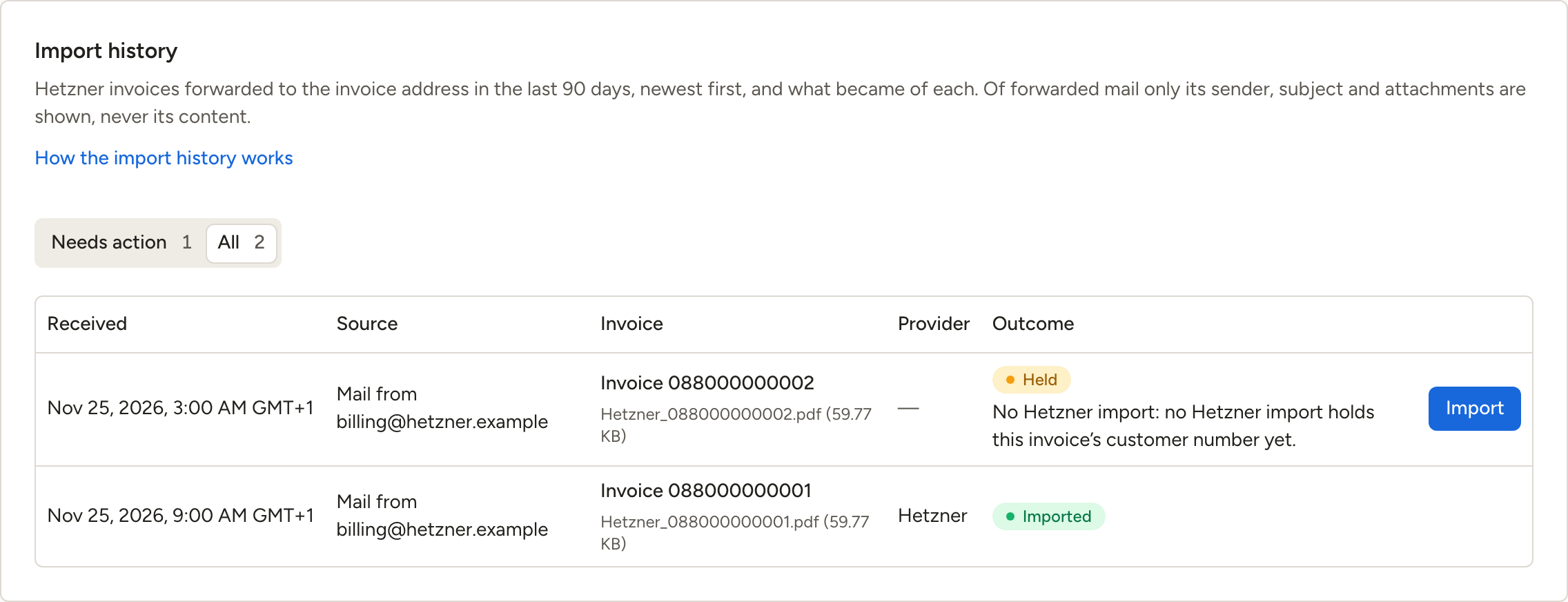
The reasons:
- Import refused, the statement could not be fetched: Hetzner did not answer, or did not serve the statement under the import's customer number. Paste the link once Hetzner answers again, or upload the statement.
- Import refused, the statement was refused: it is not a statement Costfluent reads (see below).
- Import refused, the statement does not match the invoice: its lines sum to more than half a cent per project and product away from the invoice's net amount, so it is not this invoice's statement, or not all of it.
- Unknown supplier: Hetzner's email arrived while no Hetzner import holds its customer number. Costfluent keeps its PDF for 30 days. Import it from its row, connecting Hetzner with that customer number in the same dialog (Import a held invoice).
- Sender not allowed: a Hetzner invoice came from a sender that is neither allowed nor Hetzner's billing address. Import it from its row, which can also allow the sender.
An invoice held for any of these reasons offers Import in its row; once the cause is fixed, it tries again.
Import a held invoice
- In Hetzner's Import history, select Import in the held invoice's row. The Import Hetzner invoice dialog opens.
- Choose the Hetzner import it becomes an upload of; the only one is chosen for you. For an invoice of a customer number no import holds, select Connect Hetzner, create the import, and it is chosen.
- If the dialog asks for the Invoice PDF, attach the PDF from Hetzner's invoice email.
- Select Import.
Costfluent imports the statement the invoice's PDF links, as an uploaded PDF does, and the row reads Imported. It asks for the PDF when it no longer has it, after 30 days, or when it kept only the invoice's embedded e-invoice, which holds no usage link; the PDF you attach is read and not kept. A PDF of another invoice, or an invoice of another customer number than the import's, is refused before anything is fetched. For a sender that is neither allowed nor Hetzner's billing address, the dialog also offers to accept the sender's future invoices, checked by default.
Refused links and uploads
- Hetzner does not serve this statement under the customer number. The link is from an invoice of another Hetzner account, or the import's customer number is wrong. Create an import with the right customer number.
- The link is not a detailed usage link. A link has the form
https://usage.hetzner.com/<UUID>, with nothing after the UUID. - Not a Hetzner statement. The file is empty, not UTF-8 or not a
.csv, or its header is not the one "Download CSV" writes. Download the statement again and upload it unchanged. - A line of the statement is refused. The message names the line and the column, such as an amount not written in euros or a total that is not the quantity times the price.
- The statement is too large. It is over 90 MB, more than one file was sent, or it spreads into more daily records than one upload may hold.
- The statement link answered something else. Hetzner answered a page that is not a statement. Upload the statement's CSV instead.
- Hetzner is unavailable. Try the link again later.
- The import refuses a Hetzner e-invoice. An e-invoice provider was sent an e-invoice for a customer number your Hetzner import already imports (Hetzner counted twice).
- Hetzner's invoices are already imported by your e-invoice provider. A statement was sent while an e-invoice provider holds Hetzner's invoices; the message names it (Hetzner counted twice).