Virtual tags
Give every cost line one tag value, computed from your provider tag keys and ordered rules, and use it in reports without collecting anything again.
A virtual tag is a tag key your workspace defines instead of your resources. Its value for each cost line is computed when a report is read: from the provider tag keys you name, then from ordered rules, then from a default. Use one when the same meaning is spread over several keys (team, Team, owner), or when untagged cost still has an obvious owner.
Before you start
- Open Allocation, then Virtual tags, or follow the link in the header of the Segments page or in the Tag keys card on the Tags page.
- Creating, editing, previewing and deleting virtual tags needs the Editor team role in a workspace your team can edit.
- A virtual tag belongs to one workspace, and its key is unique there.
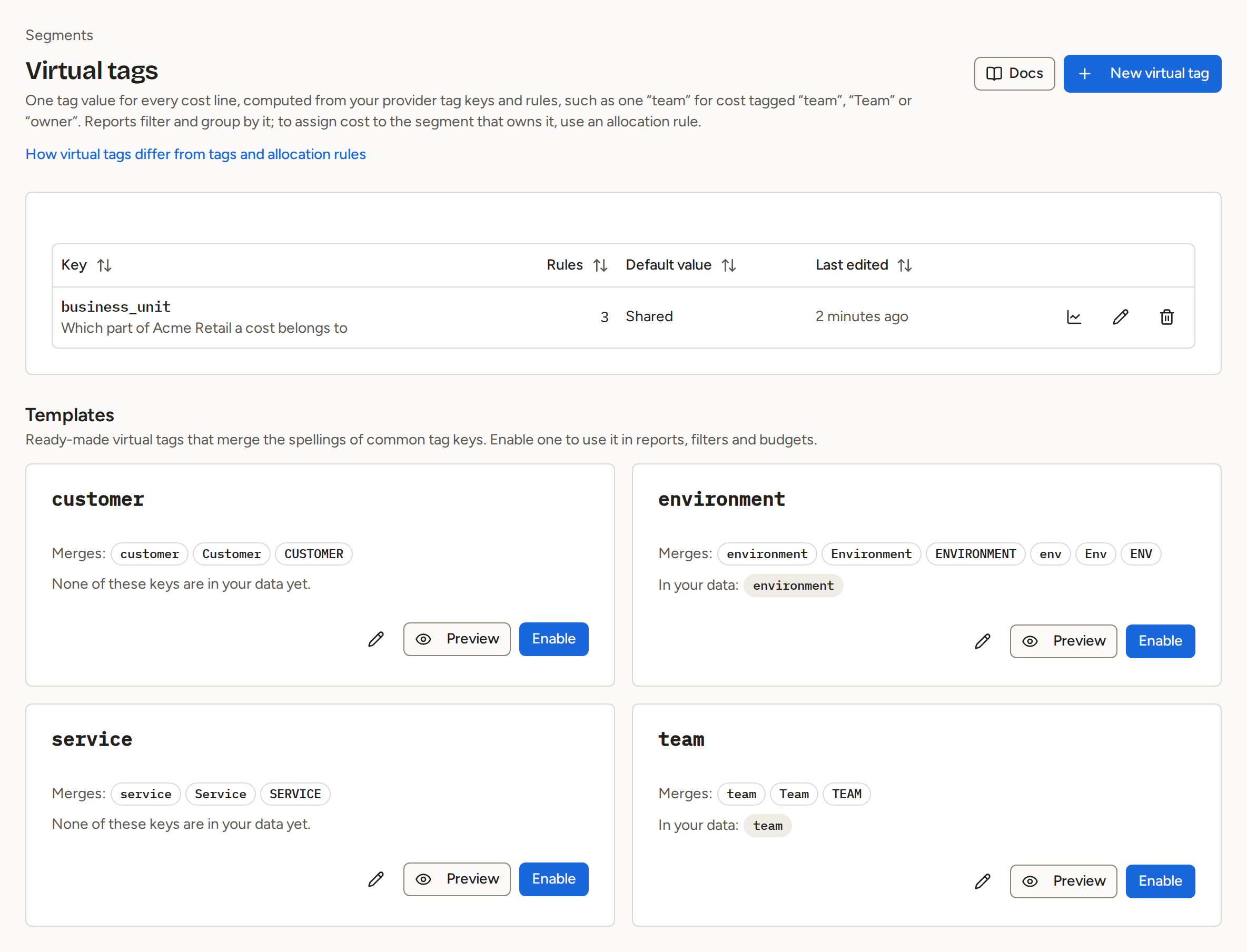
The table lists each virtual tag in the columns Key (with its description and provider tag keys below it), Rules (how many), Default value and Last edited, followed by the actions to open it as a report, edit it and delete it. Every team role can open a virtual tag as a report.
Create a virtual tag
- Select New virtual tag.
- Enter the Tag key, the name reports will show, and optionally a Description. Keys starting
k8s:are reserved for Kubernetes allocation, and keys startingai:for the AI tags Costfluent writes from the bill. - Under Provider tag keys, select the source keys to read, in order. The first key a cost line carries gives its value, so
teamandTeamcan become one tag. - Under Rules, select Add rule for cost lines no provider tag key covered. Give each rule a Value and one or more conditions with Add condition. A condition uses the same fields and operators as a report filter, except that it cannot read another virtual tag. A rule matches when all of its conditions match. Once you edit a rule or leave its Value, it says what it still lacks: its value or a complete condition.
- Order the rules with the move up and move down controls on each rule. They are evaluated top to bottom, and the first rule that matches assigns its value.
- Optionally set a Default value for cost nothing matched. Left empty, unmatched cost has no value.
- Check the Preview, then select Create virtual tag. A message such as "Virtual tag team created." confirms it.
Start from a template
A new workspace comes with four templates, listed under Templates below the table: environment, team, service and customer. Each merges the usual spellings of its key, such as env, Env and ENVIRONMENT for environment, into one virtual tag. A template is disabled until you enable it, so no report, filter or budget offers it.
- Read the template's card. "Merges:" lists the provider tag keys it reads, in order. "In your data:" lists the tag keys your cost data carries that match one of them, ignoring case, and the card names any of those it does not merge yet.
- Select Preview to see the cost per value it would show over the last 30 days. Nothing changes until you enable it, which you can do from the preview with Enable.
- Optionally, select the edit action to change it as you would any virtual tag, for example to add a spelling the card named.
- Select Enable. A message such as "Template environment enabled. Reports, filters and budgets can use it now." confirms it, and the template moves into the table as a virtual tag like any other.
Read the preview
Preview shows cost per value over the last 30 days, as a report grouped by this tag would show it. Below each value it names where the value comes from: "Rule 2", "Rules 1 and 3", "Provider tag keys", or "Provider tag keys or rule 1" when a provider tag key and a rule can both give it. Cost nothing matched appears as "Unmatched", or "Unmatched (reported as …)" when a default value is set; without one, the preview says to add a rule that matches it or to set a default value. The preview writes nothing. Until the key and every rule are complete it reads "Complete the key and every rule to see a preview."
Use it in reports
Select the report action on a virtual tag's row to open a new report grouped by it; its unmatched cost is the row named "No" and the tag's key, such as "No team", or the default value's row when one is set. On a report under Cost reports, set Group by to Virtual tag and choose the tag under Tag key, or add a filter clause on Virtual tag and pick from the values its rules assign; Save changes or Save as new keeps it in a report. See Explore cost data. Saved reports, dashboards, share links, CSV exports and the Public API all use the same definition.
Edit or delete
- Select the edit action on a virtual tag to change it in Edit virtual tag, then Save. A message such as "Virtual tag team saved." confirms it. Edits apply to the next report you open; nothing is recomputed, and past months follow the new definition. If the tag cannot be read, the dialog says so and offers Retry.
- Select the delete action and confirm with Delete in Delete virtual tag, which says beforehand that a tag in use cannot be deleted. Historical cost data no longer has this tag. While a report, a cost alert or a saved filter still groups or filters by the tag, the delete is refused, the dialog stays open and the message names each of them: take the tag out of them, or delete them, first. A link to a report page whose unsaved changes still group or filter by a deleted tag shows "Deleted virtual tag".
How it behaves
- Order of evaluation for each cost line: provider tag keys in order, then rules top to bottom, then the default value.
- A rule has no OR: all of its conditions must match, where an allocation rule can combine conditions with AND and OR. To match either of two cases, add a rule for each with the same value.
- A virtual tag never changes the cost records or your provider tags. It is not an allocation rule; to assign cost to owners, use segments.
- A virtual tag reads at most 10 provider tag keys and takes at most 50 rules, with at most 50 conditions across all its rules. Its keys, values and condition values are limited to 32 KiB together. Costfluent refuses a larger definition, and a key starting
k8s:orai:, with the reason. A virtual tag saved under anai:key before that prefix was reserved keeps working, but takes no edit until you rename its key. - A virtual tag saved under the earlier limits of 100 rules and 200 conditions keeps working in reports. Costfluent refuses any edit to it, even one to the description alone, until it fits within the current limits.
- Enabling a template cannot be undone; delete the virtual tag if you no longer want it. A template counts toward the workspace's virtual tags only once it is enabled.
- Creating a virtual tag with a template's key, or changing a virtual tag's key to it, replaces the template with your definition.
- The Public API lists and returns enabled virtual tags only.