Issue trackers
Connect GitHub Issues, Linear or Jira, create an issue from a savings finding or an anomaly, and follow the issue's state in Costfluent.
An issue tracker hands a savings finding or an anomaly to the people who act on it, in the tool where they already work. Costfluent creates the issue in your GitHub repository, Linear team or Jira project, shows its key and state beside the finding or the anomaly, and moves an accepted finding to Implemented when its issue is completed. Open Settings, then Integrations, and find Issue trackers at the bottom.
Before you start
Available on the Pro, Business and Custom plans. Compare plans
- Connecting, testing, editing and deleting a tracker needs the Owner, Integration owner or Editor organization role. Every member sees the connected trackers.
- Creating an issue for a finding needs the right to respond to it, and for an anomaly the right to change its status: both come with the team role Editor with edit access to the workspace.
- Each tracker runs with your own credentials, against your own tracker:
- GitHub Issues: a fine-grained personal access token limited to one repository on github.com, with “Issues” set to read and write.
- Linear: a personal API key allowed to create issues, and the key of the team, as ENG in ENG-123.
- Jira: a Jira Cloud site, the email address of an Atlassian account, an API token of that account, and the key of the project, as OPS in OPS-7. The account needs “Browse projects” and “Create issues” in the project.
- To follow an issue's state, you add a webhook in the tracker, which needs the right to manage webhooks there: a repository admin on GitHub, a workspace admin in Linear, a Jira administrator.
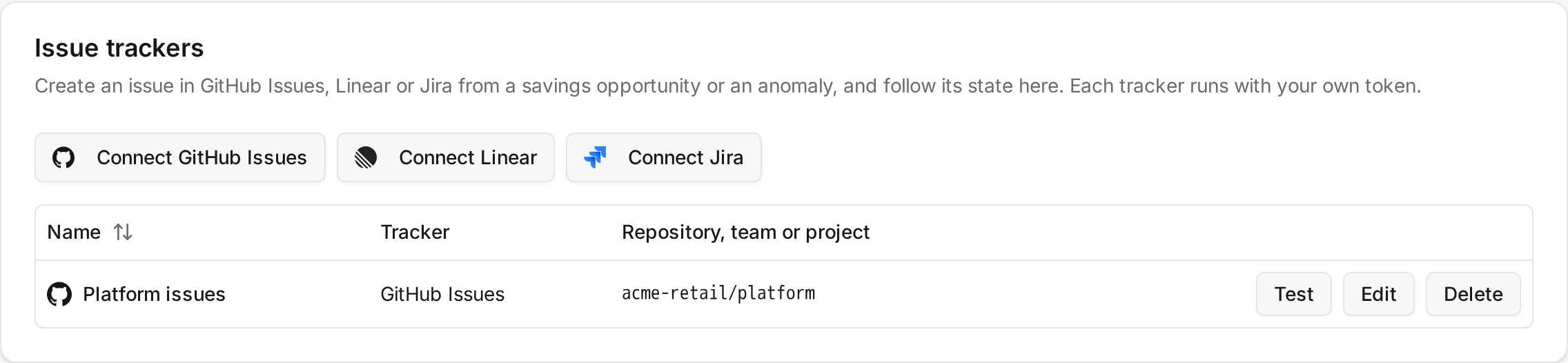
Connect GitHub Issues
- Select Connect GitHub Issues.
- Keep or change the Name, enter the Repository as owner and name, and paste the Personal access token.
- Select Connect. Add the webhook shows the Webhook URL and the Signing secret. Costfluent shows the secret only this once.
- In the repository's “Settings” on GitHub, open “Webhooks” and add a webhook: the Webhook URL as the payload URL, the content type application/json, the Signing secret as the secret, and the individual event “Issues”.
- Select Done.
Connect Linear
- Select Connect Linear.
- Keep or change the Name, enter the Team key and paste the Personal API key.
- Select Connect. Add the webhook shows the Webhook URL.
- In Linear's “Settings”, open “API” and create a webhook with the Webhook URL for issue events. Linear shows the webhook's signing secret.
- Paste it into Webhook signing secret and select Save secret. If you add the webhook later, select Later, and paste the secret afterwards with Edit on the tracker.
Connect Jira
- Select Connect Jira.
- Keep or change the Name, and enter the Site as https://name.atlassian.net, the Account email, the API token and the Project key. Issue type is the type issues are created as; it is Task when you leave it empty.
- Select Connect. Add the webhook shows the Webhook URL and the Signing secret. Costfluent shows the secret only this once.
- In Jira's “System” settings, open “WebHooks” and create a webhook with the Webhook URL, the Signing secret as its secret, and the issue created and updated events.
- Select Done.
Test on a connected tracker reads the repository, team or project its credentials reach and names what is wrong, such as a revoked token or a repository the token cannot see. It creates nothing in your tracker.
Create an issue
- On Savings, the Issue column, shown while a tracker is connected, offers Create issue on an open or accepted finding.
- On Insights, each anomaly offers Create issue.
With more than one tracker connected, Create issue asks which one. The issue then shows beside the finding or the anomaly: Creating at first, and then its key, its state and a link to the issue in your tracker.
The issue carries the finding's title, evidence, estimated monthly saving and owner, or the anomaly's service, cost, expected cost and day, and a link back to Costfluent.
How it behaves
- A finding or an anomaly has at most one issue in each tracker. Asking again in the same tracker shows the issue already there.
- The issue is created within about a minute of Create issue. If the tracker refuses it, the issue reads Issue failed with the tracker's reason, and Create issue asks again.
- The state comes from the tracker's webhook: Open, In progress, Done or Canceled. GitHub has no in-progress state. An issue closed as not planned or as a duplicate, or a Jira issue resolved as won't do, is Canceled.
- When an accepted finding's issue comes to Done, the finding becomes Implemented, recorded in the audit log with System as its actor. Nothing else moves a finding: reopening the issue does not move it back, and an open finding stays open.
- Costfluent reads the issue back from your tracker on every webhook event and shows what the tracker reports, so an event delivered twice or out of order changes nothing.
- A token, API key or API token is never shown again. In Edit, leave a credential empty to keep the stored one.
- Deleting a tracker leaves its issues in your tracker; Costfluent stops showing them and stops following their state.
Without the webhook, an issue keeps the state it had when it was created.