# Connect Google Cloud (GCP)
Costfluent reads Google Cloud cost from your BigQuery billing export. It creates a service account
for your organization in its own Google Cloud project, and you grant that account read access to
the export dataset. No key is created or exchanged, and nothing is created in your cloud except
that one grant.
Connect a billing account, not a project. Its export already carries the cost of every project the
billing account pays for, so one connection covers them all.
## How Costfluent connects
**BigQuery Data Viewer** on the export dataset, and nothing else. Costfluent runs its queries in its
own project and pays for them there, so it needs no role in your project and cannot see any other
dataset, run jobs on your bill, or change anything.
For the [carbon footprint report](/reporting/carbon), also grant the service account **BigQuery Data
Viewer** on the dataset your Carbon Footprint export writes to
([Carbon Footprint export](#carbon-footprint-export)).
To list your committed use discounts under [Commitments](/optimization/commitments#commitments-held),
also grant the service account **BigQuery Data Viewer** on the dataset your committed use discount
metadata export writes to ([Committed use discount export](#committed-use-discount-export)).
### Recommender roles
To have **Savings** list Google Cloud Recommender's cost recommendations, also grant the service
account these roles on each project to read, or once on a folder or the organization above them,
which every project under it inherits. They read recommendations and insights only:
| Role | Recommendations Costfluent reads with it |
|---|---|
| `roles/recommender.computeViewer` | VM machine type, idle VMs, idle disks, idle IP addresses, idle images |
| `roles/recommender.projectCudViewer` | committed use discount purchases |
| `roles/recommender.cloudsqlViewer` | idle and overprovisioned Cloud SQL instances |
The broader **Recommender Viewer** role is not needed; it would also show the project's IAM,
firewall and security insights. A project without these roles is skipped
([Savings](/optimization/savings)).
## Prerequisites
1. The Owner or Integration owner organization role in Costfluent.
2. A project to hold the billing data. A dedicated one keeps access narrow.
3. A BigQuery dataset in that project, in the **US** or **EU** multi-region.
4. Under **Billing**, then **Billing export**, the **Detailed usage cost** export enabled into that
dataset. The standard export lacks the per-resource fields Costfluent reads. Google can take a
few hours to write the first rows.
5. Optional, for the carbon footprint report: the
[Carbon Footprint export to BigQuery](https://docs.cloud.google.com/carbon-footprint/docs/export)
set up for the same billing account, into a dataset in the same project.
6. Optional, for committed use discounts on **Commitments**: under **Billing**, then **Billing
export**, the
[committed use discount metadata export](https://docs.cloud.google.com/billing/docs/how-to/export-data-bigquery-setup)
enabled for the same billing account, into a new dataset in the same project. Google's setup
creates that dataset and says not to use an existing one. The export is a Preview feature of
Cloud Billing, and enabling it needs the Billing Account Administrator role on the billing
account and BigQuery Admin on the project.
## Connect
### Connect in the console
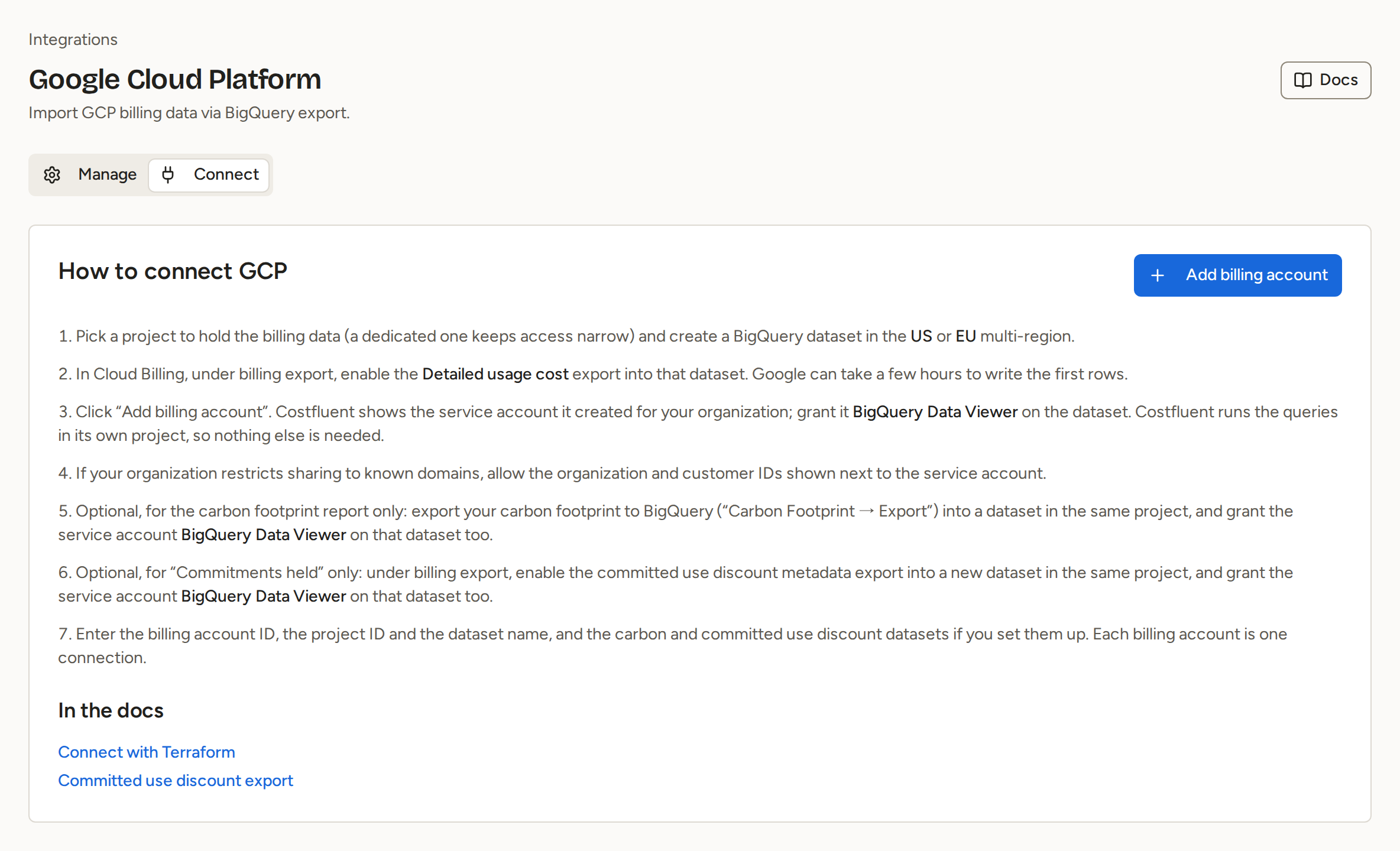
1. Open **Settings**, then **Integrations**, select **Google Cloud**, and open the **Connect** tab.
2. Select "Add billing account". Under **Service account**, Costfluent shows the service account it
created for your organization, with a button to copy its address. The address is the same every
time you open the dialog.
3. In the dataset's sharing settings in Google Cloud, grant that address **BigQuery Data Viewer**,
and on the Carbon Footprint export's and the committed use discount export's datasets too if you
set them up.
If your organization restricts sharing to known domains, first allow the **Organization ID** and
**Customer ID** Costfluent shows beside the address.
4. Back in the dialog, keep the suggested **Display name** or enter your own, then enter the
**Billing account ID** (`012345-ABCDEF-678901`), the **Project ID of the BigQuery dataset** and the
**BigQuery dataset name**, and the Carbon Footprint export's dataset as **Carbon dataset** and
the committed use discount export's dataset as **Committed use discount dataset** if you set
them up.
5. Select "Test connection" to see each check, or "Connect" to save.
Costfluent validates the query it will run before storing anything, so a connection that saves can
read your cost. If Google does not answer during that check, the connection is saved anyway and
checked again automatically.
### Connect with Terraform
With the Costfluent Terraform provider, the whole connection is one apply. The
`costfluent_gcp_service_account` resource returns the service account's `email`, the
`costfluent/cost-access/gcp` module grants it the role on the dataset, and the module's
`credentials` output feeds `costfluent_provider`:
```hcl
resource "costfluent_gcp_service_account" "this" {}
module "costfluent_gcp" {
source = "costfluent/cost-access/gcp"
version = "~> 0.5"
project_id = ""
billing_dataset_id = ""
billing_account_id = "012345-ABCDEF-678901"
costfluent_service_account_email = costfluent_gcp_service_account.this.email
# Optional: the projects whose cost recommendations Savings lists, or the numeric IDs of folders
# or the organization whose projects it lists.
recommender_project_ids = ["", ""]
recommender_folder_ids = []
recommender_organization_id = null
# Optional: the Carbon Footprint export's dataset, in the same project.
carbon_dataset_id = ""
# Optional: the committed use discount metadata export's dataset, in the same project.
cud_dataset_id = ""
}
resource "costfluent_provider" "gcp" {
key = "gcp"
display_name = "Google Cloud"
credentials = module.costfluent_gcp.credentials
settings = module.costfluent_gcp.settings
depends_on = [module.costfluent_gcp]
}
```
`credentials` carries the billing account ID, the project and the dataset, the same three values
the dialog asks for. `settings` carries `carbon_dataset` when `carbon_dataset_id` is set and
`cud_dataset` when `cud_dataset_id` is set, and is empty without either. The module grants the
service account **BigQuery Data Viewer** on each dataset you name. A new grant takes a little while
to apply, so `costfluent_provider` retries for up to three minutes while Costfluent reports the
dataset as not shared yet. The resource also returns `organization_id` and `directory_customer_id`,
the IDs to allow when your organization restricts sharing to known domains.
`recommender_folder_ids` and `recommender_organization_id` grant the three Recommender roles on
folders or the organization instead of each project, so projects created under them later are
covered too. Costfluent reads recommendations only for the projects in the billing export's recent
cost rows, whichever way the roles are granted.
## Data and freshness
Connecting imports as far back as your plan's backfill reaches, and at most six months
([Manage connections](/connect/manage-connections#how-it-behaves)), as long as the export holds
data that far back.
Google corrects a past month by adding rows to the export, with no time limit. Every sync checks
the export for rows added to closed months, and Costfluent collects each corrected month again, as
far back as your plan's history reaches and at most three years.
:::note
One day of one billing account's export may hold at most 2,560,000 rows and 4 GiB of cost data. A
larger day stops the connection with an error that names the day; contact Costfluent support to
collect it.
:::
### Carbon Footprint export
Google delivers each month's emissions on the 15th of the next month, and the export's first
delivery reaches back to January 2021. Costfluent reads it on the 22nd
([Carbon footprint](/reporting/carbon#how-it-behaves)), with the same service account as the cost.
The **Carbon dataset** is set when you add the connection; the connection page cannot change it. To
add one to an existing connection, set `carbon_dataset` through Terraform's `settings` or the Public
API's `PUT /v1/providers/{providerId}`.
### Committed use discount export
Google writes a daily snapshot of the billing account's spend-based committed use discounts to the
export's `cud_subscriptions_export` table. Costfluent reads it once a day, with the same service
account as the cost, and lists each commitment under **Commitments held** with when it ends. As one
nears its end, every workspace that lists it gets a notification
([Commitments](/optimization/commitments#commitments-held)). The **Committed use discount dataset**
is set when you add the connection; the connection page cannot change it. To add one to an existing
connection, set `cud_dataset` through Terraform's `settings` or the Public API's
`PUT /v1/providers/{providerId}`.
:::note
Resource-based commitments are not in Google's export, so Costfluent does not list them. Without
the export, coverage and the cost of committed use discounts in reports still come from the billing
export.
:::
## Reporting dimensions
What each group-by dimension of a [cost report](/cost-reports/explore) holds for a Google Cloud
connection, and the column of the detailed usage cost export it comes from.
| Dimension | For Google Cloud | From |
|---|---|---|
| **Provider** | `gcp` | The connection |
| **Seller** | `Google Cloud Platform`; for a Marketplace charge Google resold or sold as a partner's agent, the seller | `seller_name`, `transaction_type` |
| **Sub-account** | The project's ID; empty for a charge without a project | `project.id` |
| **Service** | The service | `service.description` |
| **Region** | The region's name, such as `US Central (Iowa)`; the location for a charge without a region, and `Global` for one without either | `location.region`, else `location.location` |
| **Resource** | The resource's name | `resource.name` |
| **Charge category** | Usage for a regular charge, Tax or Adjustment, as the export states it; a charge's promotional credits are a Credit row of their own, named by the promotion, and every other credit (sustained and committed use, discounts, free tier, reseller margin, subscription benefit) is subtracted from the charge it belongs to, as part of its price | `cost_type`, `credits` |
| **Service category** | The FOCUS category of the service; Vertex AI and the Gemini API are AI and Machine Learning | `service.description` |
| **SKU** | The SKU's description, such as `Gemini 2.5 Flash GA Text Input - Predictions` | `sku.description` |
| **SKU ID** | The SKU's ID | `sku.id` |
| **Resource type** | `VM Instance` where the SKU's description names N1, N2 or E2, `Storage` where it names Storage; empty otherwise | `sku.description` |
| **Charge description** | On a credit's row, the credit's name; empty on usage | `credits.name` |
| **Invoice issuer** | `Google`, whoever sold the charge | |
| **Billing period** | The invoice month, such as `2026-03` | `invoice.month` |
| **Operation**, **Product family**, **Invoice ID**, **Resource group** | Never filled; the export states no invoice ID | |
| **Tag** | Every key of the project labels, resource labels, system labels and tags, merged in that order | `project.labels`, `labels`, `system_labels`, `tags` |
| **Segment** | Your allocation rules | [Segments and allocation rules](/allocation/segments) |
| **Cluster**, **Namespace** | Never filled; GKE's own labels arrive as tags, and the dimensions hold the agent's cost ([Connect Kubernetes](/connect/kubernetes)) | |
| **Virtual tag** | Your virtual tag rules | [Virtual tags](/allocation/virtual-tags) |
## Update or disconnect
### After connecting
The **Manage** tab lists the connection by its display name, with its **Billing account ID**,
**Project** and **Dataset**. Open the gear icon beside it to see whether the dataset is still
readable, which workspaces the connection feeds, and which billing months have been imported.
**Run checks** on the connection page runs the checks again on request and reports each one
separately, so a failure names the step that failed.
### Rotating or removing access
There is no key to rotate. To retire the connection, remove it in Costfluent and remove the service
account's grant on the dataset, or run `terraform destroy`. Removing it erases the cost it imported
([Remove a connection](/connect/manage-connections#remove-a-connection)). When a Costfluent
organization is deleted, its service account is deleted with it.
Costfluent also deletes the service account once no connection and no Cloud Storage destination
has used it for 7 days. Selecting
"Add billing account", provisioning it through the API, or a Terraform plan creates it again at the
same address, but Google does not carry the old account's grants over to it: grant it everything
again, as in the steps above, before you connect.
## Troubleshooting
- **The dataset is not shared yet.** The test names the dataset and the service account. Grant the
role, and try again a few minutes later, since a new grant can take that long to apply.
- **The service account was removed.** If you connect after Costfluent deleted the unused service
account ([Rotating or removing access](#rotating-or-removing-access)), Costfluent creates it again
and the test says so. Grant it **BigQuery Data Viewer** on the dataset again, and on the carbon and
committed use discount datasets and the Recommender roles if you used them (applying the Costfluent
module again gives all of them), then connect.
- **The billing export is not populated yet.** The dataset exists but has no export table. Google
creates it a few hours after the **Detailed usage cost** export is enabled.